Windows 10 Start menu and Alt+Tab slow after screen sharing
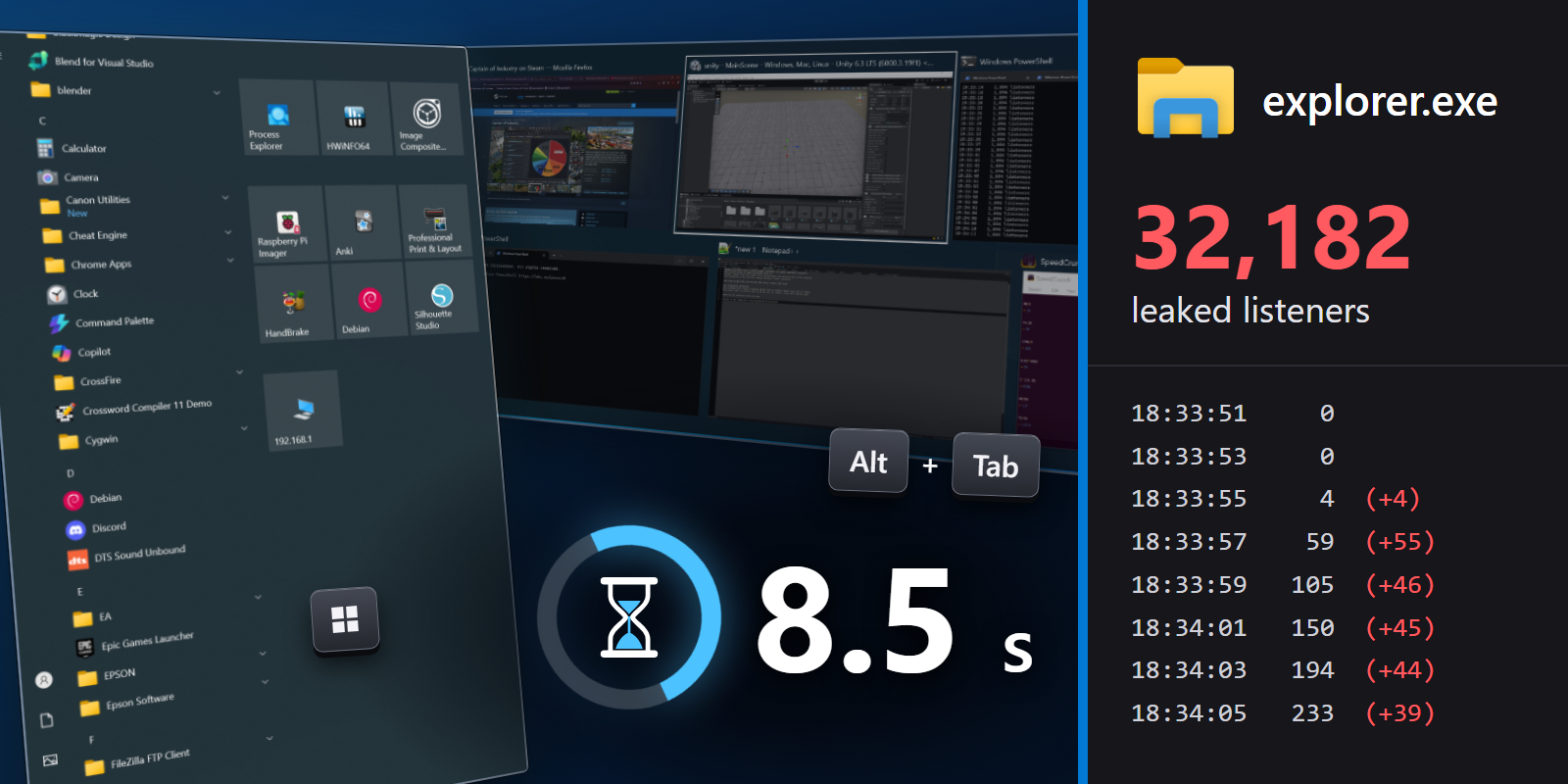
If the Start menu and Alt+Tab on your Windows 10 keep getting slower, the cause is likely window sharing via a browser. Sharing a window using Chrome/Edge/Opera leaks about 20 listeners per second inside Windows Explorer, and after a few meetings my Start menu took 8 seconds to open. This article explains the root cause, shows how to work around it, and provides a script to check your own system.
TL;DR:
- When you share a single window from a Chromium-based browser (Chrome/Edge/Opera) during an online meeting or in web apps like Discord, Windows 10 leaks about 20 listeners per second inside
explorer.exe.- Explorer calls every one of them whenever any window changes, so after enough sharing the Start menu and Alt+Tab take seconds to show up.
- Workarounds: Share the entire screen or a tab, don't use Chromium-based browsers for window sharing, or restart
explorer.exeafter sharing a window.- Microsoft fixed it in Windows 11 24H2 and did not backport the fix to Windows 10.
- To check your own system, see section 5: Self-diagnosis.
1. Slow Start menu and Alt+Tab#
I've been experiencing this incredibly frustrating issue on my Windows 10 computer for years. Response times for the Start menu and Alt+Tab were (seemingly randomly) getting slower and slower. When I pressed the Start button (either with the keyboard or the mouse), it took multiple seconds before anything showed. Same with Alt+Tab. This was so bad that I had to restart my computer a few times a week to be able to work.
Restarting the computer is a productivity killer so I quickly figured out that restarting the explorer.exe process is sufficient to fix this (for some reason, opening of the Start menu, Alt+Tab menu, taskbar, and file browser are all handled by the same process).
But restarting Explorer is also problematic as you not only lose all open file browsing windows, but also some programs break in subtle ways (e.g. Google Chrome is unable to use the webcam, tray icons of some programs disappear, etc.).
Over the years, I had many theories on what could be causing this. My biggest hunch was some third-party shell extensions for Explorer, like Google Drive sync, PowerToys, or ASUS Sonic Studio (this one went first), but even after uninstalling/disabling all third-party extensions, this kept happening. The usual advice from the internet did not help either. Web search in the Start menu was already turned off, the menu delay settings were at their defaults, and the computer was not running out of RAM, GPU memory, or window handles.
I've tried to find a root cause many times but always failed. I even blamed my degraded Intel CPU but after fixing it, this kept happening. However, this time I was finally able to find the root cause.
2. Root cause: Window sharing#
Long story short, when a program uses window sharing (such as Meet in Google Chrome in my case), Windows registers listeners inside of the explorer.exe process, but never removes them.
They accumulate over time (~20 per second of window sharing for me, likely one for every captured frame!) and Explorer calls them all every time any window changes, which includes showing of the Start menu or Alt+Tab, causing a big lag.
For example, after a few days of work (and a few meetings where I shared a window), explorer.exe had 32,182 listeners and took around 8 seconds to go through them!
More detailed analysis is in Appendix A: How the root cause was found.
3. Workarounds#
Unfortunately, Microsoft fixed this only in Windows 11 and never brought the fix to Windows 10, so if you are still on Windows 10, here are your options:
- Do not use window sharing, share your entire screen or a browser tab instead.
- Find a program that allows window sharing but is not affected by this issue, in my case Firefox or the Discord desktop app can share windows without a problem.
- Restart
explorer.exeevery time after a meeting where you shared a window. - Upgrade to Windows 11 (24H2 or newer) where this issue is fixed, and enjoy ads in your (now responsive) Start menu.
Note: The easiest way to restart explorer.exe is to open the Task Manager (Ctrl+Shift+Esc), right-click on Windows Explorer and select Restart.
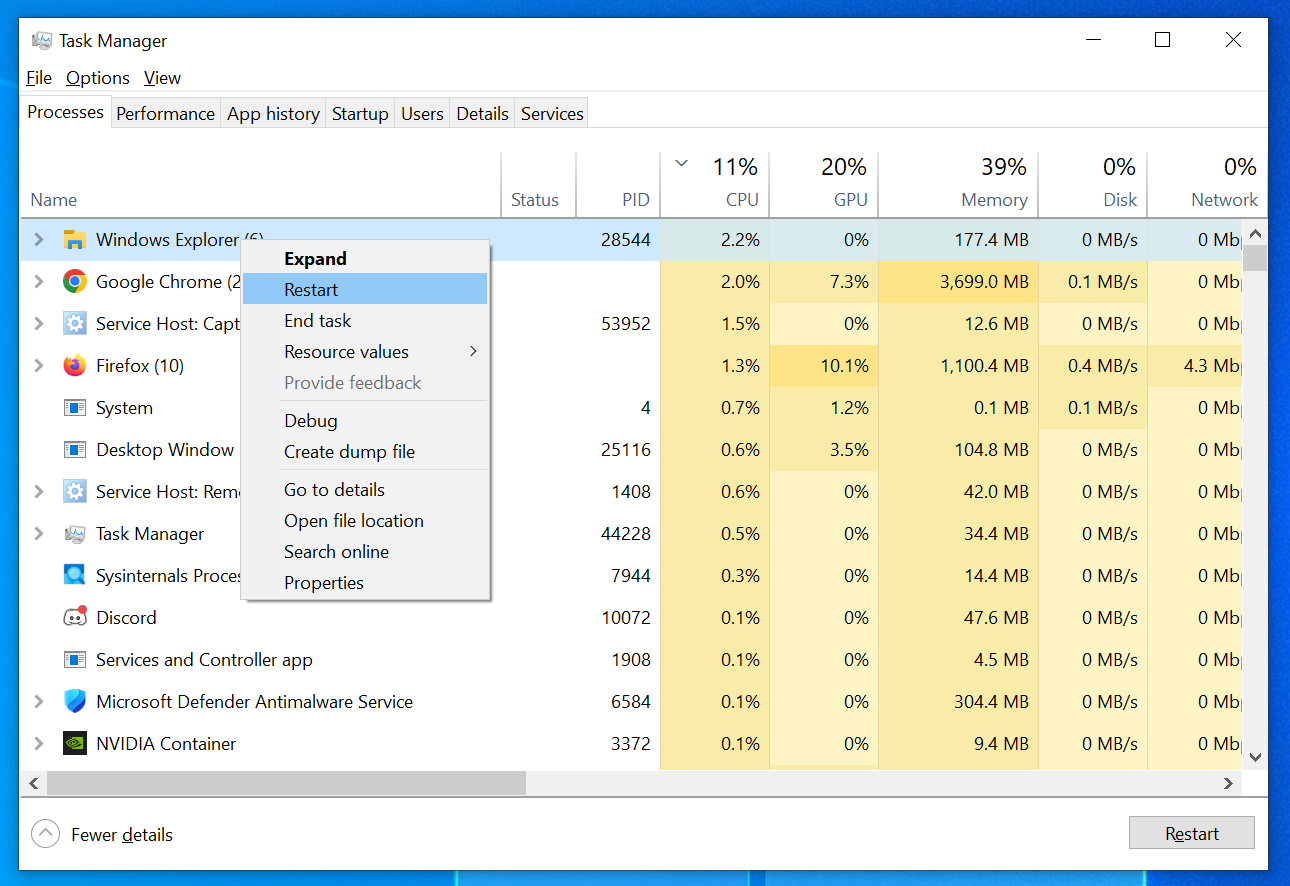 Figure 1: Restarting Windows Explorer from the Task Manager, my regular routine for many years that is finally no more!
4. Issue timeline#
Once I knew the root cause, I started digging to see whether this was reported before.
Turns out, this issue is a bug in Windows 10.
It was likely reported in issue #122 on 4 May 2023 (still open).
The reporter demonstrated Start menu delays of 30+ seconds caused by an app that was taking screenshots of windows in a loop, and restarting explorer.exe fixed it.
Microsoft's maintainer even published his own test program that triggers it.
This was reproduced and fixed on Windows 11, but the fix was never back-ported to Windows 10.
Here is a little timeline of events.
| Date | Event |
|---|---|
| ~2019 (estimate) | The bug probably ships with the window capture feature itself, which was added in Windows 10 version 1903 (May 2019). |
| 4 May 2023 | GitHub issue #122 is opened in Microsoft's sample repository. |
| 5 May 2023 | Microsoft's maintainer writes "I think I'm able to repro". |
| 1 Oct 2024 | Windows 11 24H2 is released fixing this issue. |
| 1 Nov 2024 | Maintainer: "This was fixed as part of 24H2", with a 23H2 patch planned for early 2025. |
| 4 Nov 2024 | Maintainer: "This fix wasn't sent down to Windows 10." |
| 14 Oct 2025 | Windows 10 reaches end of support. |
| 11 Nov 2026 | Still present on Windows 10 22H2 build 19045.7807, with the October 2026 cumulative update installed. |
Since Windows 10 is out of support, I think it's safe to assume it will never be fixed. The Extended Security Updates program, which keeps Windows 10 patched until October 2027, delivers security fixes only.
5. Self-diagnosis#
If you are affected and want to easily test which programs are causing this issue, I've written a simple script that prints how many listeners are registered in explorer.exe.
You can run it and it repeatedly prints the count.
If it is increasing significantly without bounds, you are hitting this issue.
You can download the script here. Open PowerShell in the folder where you saved it and run:
1
powershell -ExecutionPolicy Bypass -File .\Watch-ExplorerListeners.ps1
Then share a window from your meeting program for a few seconds and watch the number. On my computer, every 4,000 listeners add about 1 second of delay. The script only reads Explorer's memory, needs no admin rights, and stops with Ctrl+C. On Windows 11 it printed 0 the whole time I was sharing a window from Chrome, so it does seem to be fixed there.
Example output when joining a meeting and sharing a window:
1
2
3
4
5
6
7
8
9
PS D:\Downloads> powershell -ExecutionPolicy Bypass -File .\Watch-ExplorerListeners.ps1
18:33:51        0 listeners
18:33:53        0 listeners
18:33:55        4 listeners  (+4)
18:33:57       59 listeners  (+55)
18:33:59      105 listeners  (+46)
18:34:01      150 listeners  (+45)
18:34:03      194 listeners  (+44)
18:34:05      233 listeners  (+39)
Here is a short list of programs that I've diagnosed:
| Program | Leaks listeners when sharing a window? |
|---|---|
| Google Chrome | Yes, about 20 per second |
| Microsoft Edge | Yes (Microsoft's own browser!) |
| Opera | Yes |
| TeamSpeak | Yes, according to their forum (I have not tested it) |
| Firefox | No |
| Discord (desktop app) | No |
| Discord (in Chrome) | Yes |
The Discord app is fine, but Discord opened in Chrome leaks like any other window shared from Chrome.
There are also two signs you can see in the Task Manager without any script. The memory of Windows Explorer keeps growing as listeners pile up (mine was at 790 MB with 32,182 listeners, compared to 170 MB after a restart). And every time you press the Start button, Explorer keeps one CPU core busy until the menu shows up (may be hard to notice on a CPU with many cores).
6. Conclusion#
After years of restarting Explorer every week, the cause turned out to be sharing a window in a meeting. Windows 10 leaks a listener for every window capture, and Chromium-based browsers make about 20 of them every second.
Microsoft will not fix this in Windows 10, so the only realistic fix is on the browser side. Chrome could reuse one capture item instead of creating about 20 per second, or avoid this capture method on Windows 10. I have not found any existing Chromium bug report about this, so I filed one. Until that changes, share your entire screen instead of a window, or use a program from the list above that does not leak.
I wrote this article to hopefully get indexed into search engines so that people who search "Start menu slow" can find this and relieve their pain.
Appendix A: How the root cause was found#
This is a short version of the investigation that led from "the Start menu is slow" to a leak in Explorer. Everything was measured on Windows 10 Pro 22H2 (build 19045.7807) with Chrome 157 and Firefox 159.
A script pressed the Win key and measured that the Start menu took 8.5 seconds to appear.
For 7.6 of those seconds a single thread in explorer.exe was using a full CPU core, while the process that draws the Start menu (StartMenuExperienceHost.exe) used 16 ms.
To see what that thread was doing, its call stack was sampled every 10 to 15 ms. Every busy sample looked like this (shortened):
1
2
3
4
5
combase.dll!CSyncClientCall::SendReceive
combase.dll!ObjectStubless
twinui.pcshell.dll!AgileApplicationViewChangeListenerConverter::OnApplicationViewChanged
twinui.pcshell.dll!NotificationDispatcher::WndProc
windows.immersiveshell.serviceprovider.dll!CImmersiveShellController::RunMessageLoop
Read from the bottom, Explorer's shell thread notifies a listener in another process that some window has changed. The 114 busy samples contained calls to 113 different listeners, which pointed to a very long list of them.
A scan of Explorer's memory found 32,182 listeners, all owned by processes that were no longer running. Calls to a dead process fail, but they still take about 0.24 ms each, and Explorer makes one for every listener each time any window changes. The Start menu and Alt+Tab are handled by the same thread, so they have to wait until it is done.
To find out what created them, a test program called four candidate Windows APIs and counted the listeners after each call.
Only CreateForWindow from the Windows Graphics Capture API added any, which is the call a program makes to get a "capture item" for recording a window.
Each call added one listener, registered by a Windows service named CaptureService, and the listener stayed after the capture item was released and after both the test program and the service had exited.
The service exits a few seconds after it goes idle, so the owners were no longer running.
The only program on my computer with the capture library (GraphicsCapture.dll) loaded was Chrome.
For the final test, the number of listeners was logged every 2 seconds during a Google Meet call while the sharing options were tried one by one.
The result is in Figure 2.
The count starts at 1,197 because those listeners were left over from before the test, and joining the meeting did not change it. As soon as a window is shared, the count climbs by about 20 per second until the sharing stops. Sharing the entire screen or a Chrome tab adds nothing, and neither did a minute of sharing the same window from Firefox. At that rate, it takes less than half an hour of window sharing to reach the 32k listeners from the beginning. So I must have shared a window for about 27 minutes in those few days, which is an unusual way to find that out.
Downloads
- Watch-ExplorerListeners.ps1: PowerShell script that prints the number of listeners held by explorer.exe every two seconds.